



-
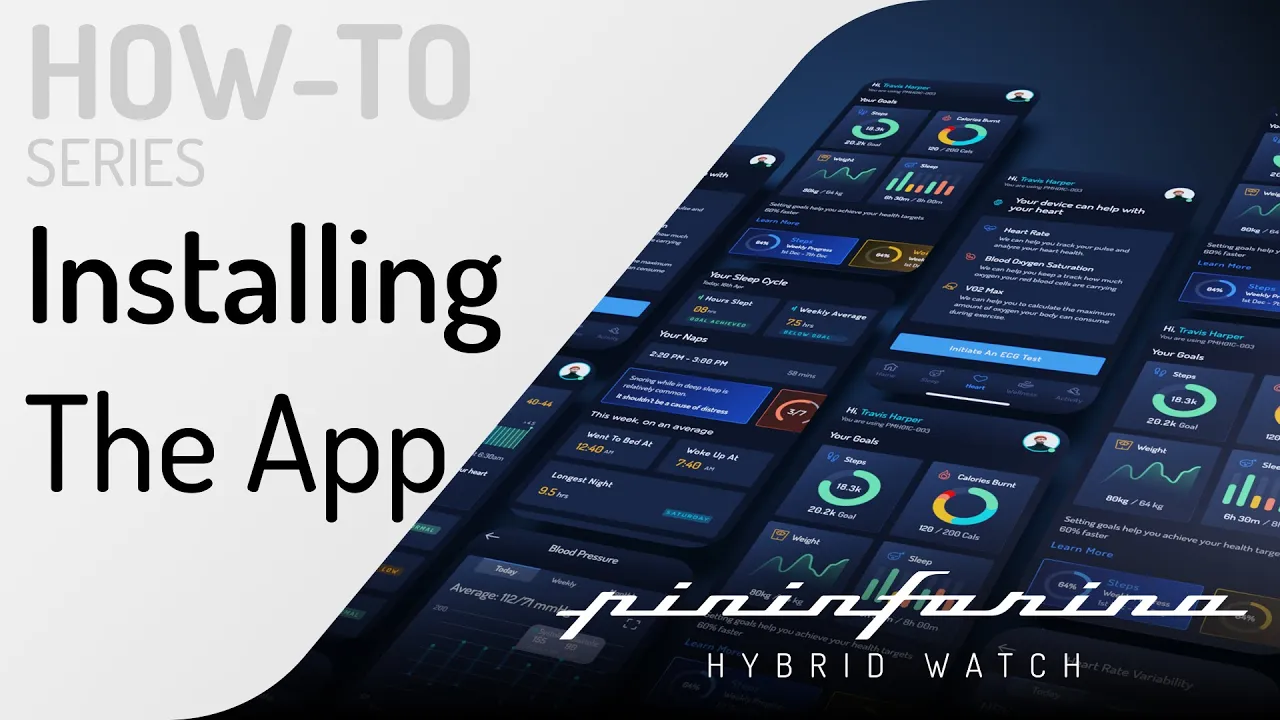
Paso 1: Descargue la aplicación
Nuestra aplicación complementaria le permite mantenerse informado, con información avanzada para ayudarlo a controlar su salud general mientras utiliza mejor los muchos sensores de su reloj. Disponible para todos los dispositivos Android e iOS. Buscar: Pininfarina Hybrid Watch en su tienda de aplicaciones
-
Paso 2: Coloca el reloj en la base de carga
Se incluye un cable de carga en el paquete. Conecte el extremo USB del cargador a una computadora o a un adaptador de corriente USB de 5 V.
- Asegúrese de que el reloj esté correctamente colocado en el cargador.
- Asegúrese de que su reloj esté cargado al menos al 50 % antes de iniciar el proceso de emparejamiento.
-
Paso 3: Conéctese a la aplicación
Conecta tu reloj en la aplicación y sigue los pasos guiados
para emparejar y configurar tu reloj.


NEW
Pininfarina VITA (PURA)


VISITE NUESTRA PÁGINA DE GUÍA DEL USUARIO
Puede encontrar información sobre cómo descargar la aplicación Pininfarina Hybrid Watch, el primer uso de su reloj y nuestra guía completa de usuario a través del botón de abajo
Watch Set Up
If the analog time on your PURA is incorrect, recalibrate the hands in the Pininfarina Vita app:
- Make sure your phone is connected to the watch via Bluetooth.
- Open the Pininfarina Vita app and go to the Settings tab.
- Tap your connected Watch Card.
- Select Hands Calibration and tap Proceed.
- Follow the on-screen instructions to move the hour and minute hands to the 12 o'clock position.
- Tap Done. The hands will move automatically to the correct time.
If your watch doesn't sync with the Pininfarina Vita app:
- Make sure your watch appears under My Devices in the Pininfarina Vita app. If it doesn't, install your watch in the app.
- Select the watch under My Devices and check that it shows "Connected" below the device name.
- Try turning Airplane mode on and off on your phone.
- If the issue continues, remove (forget) the watch in your phone's Bluetooth settings, restart your phone, then install the watch again in the Pininfarina Vita app.
If you are not receiving notifications on your Pininfarina Hybrid watch, ensure that the Notifications feature is activated within both the Pininfarina VITA App and on your mobile device.
The Pininfarina Hybrid watch can receive notifications for various types of messages, calls, emails, and calendar events. Additionally, it can display notifications from third-party applications like Whatsapp, Instagram, and Facebook.
Notes for receiving notifications from third-party apps:
• Confirm that you have enabled the Applications setting and selected the specific apps from which you wish to receive notifications in the Pininfarina Hybrid App. These steps are essential for receiving notifications on your Pininfarina Hybrid watch.
• Ensure that the Pininfarina Hybrid App remains active in the background on your phone at all times. If the app is closed or force-stopped, notifications will not be delivered to your watch.
iOS users
• You need to have the Pininfarina Hybrid App open in the background and receive one notification before being able to receive all notifications from some third-party apps on your Pininfarina Hybrid watch.
• Make sure that notifications are activated on your phone.
• iOS 13 and higher - If you are not receiving notifications from a specific app, please go to Settings > Notifications and select the app. There is a Show Previews field below the "Options" section. If the parameter is set to Never, you won't be able to receive notifications from the app in the watch. If "When unlocked" or "Always is selected", the notifications will be received even if the phone has a black screen. The Show Previews option is also available in the Notification page of your iPhone general settings.
• Check the list of third-party apps available in the Pininfarina Hybrid App, and activate the app from which you want to receive notifications.
• Make sure that notifications for Messages are activated on your phone. To do so, go to Settings > Notifications. Select Messages and check if Allow Notifications is turned on.
• During product installation, if you had selected No Notifications, then please ensure that Share System Notifications is now enabled for notifications to work properly.
Android users
• Ensure that you have enabled Activate Notifications, Applications, and the specific apps from which you wish to receive notifications within the Pininfarina Hybrid App. These actions are essential for receiving notifications on your Pininfarina Hybrid watch.
• Ensure that the Pininfarina Hybrid App remains open in the background on your phone at all times. Notifications will not come through if you force close the app.
• Confirm that your phone's "Do Not Disturb" and/or "silent" modes are not active. If these modes are enabled, you may not receive notifications as expected
If notifications are still not coming through, ensure that the Pininfarina Hybrid App has been granted the necessary permissions on your phone. It's important to note that the Pininfarina Hybrid App requires these permissions to show notifications on your Pininfarina Hybrid watch.
If your watch fails to power on:
- Place the watch on its charging cradle and charge it for at least 3 minutes.
- Remove the watch from the cradle and press the crown to turn on the display.
- If the screen doesn't light up, charge the watch fully and try again.
If the watch still doesn't respond, please contact our Customer Service team at support@pininfarina-hybridwatchbyglobics.com.
To avoid installation issues:
- Install your watch through the Pininfarina Vita app, not your phone's Bluetooth settings.
- Make sure your phone is compatible: the Pininfarina Vita app requires iOS 15.0 or later on iPhone, and is available on Google Play for Android.
- Make sure your phone is connected to the internet.
- Keep your phone unlocked and the Pininfarina Vita app open during installation.
- Keep your watch within 1 m of your phone during installation.
- Android users may need to allow Location permission for the app.
- If the watch was paired before, "Forget" it in your phone's Bluetooth settings and try again.
If your wristband is stained or appears blackened, we recommend rinsing the FKM band under warm water and gently cleaning it with hypoallergenic soap. Please be aware that the color of the wristband may naturally fade over time.
In the case of a damaged wristband, you have the flexibility to use any wristband of your choice with your Pininfarina Hybrid watch.
In the case of a damaged wristband, you can use any wristband of your choice. Senso and Sintesi all take 22 mm wide straps. PURA uses 20 mm wide
Note:
Metal wristbands are waterproof. Should your metal wristband sustain damage, kindly contact our customer Service.
About Skin Sensitivities:
Pininfarina Hybrid watch is crafted for continuous wear throughout the day and night. To ensure an optimal experience, consider the following suggestions:
• Maintain cleanliness and dryness of your wristband, especially after physical activities such as running or swimming. Ensure to clean the inner part of the wristband, particularly after showering.
• Allow your skin to breathe by periodically removing the watch for at least an hour during the day, such as before showering.
• Adjust the tightness of the wristband to strike a balance between secure fitting and comfort. If you notice any redness, consider loosening the wristband slightly.
• Regularly clean your wristband to prevent skin irritations caused by moisturizers, soaps, or sweat residues. In case of skin irritation, consulting a dermatologist before reapplying your Pininfarina Hybrid watch is advisable.
Tracking
If your step count doesn't seem accurate:
- Wear the watch snugly on your wrist so it doesn't move during activity.
- Make sure your watch is listed and shows "Connected" under My Devices in the Pininfarina Vita app.
- Re-sync the watch with the app.
If the readings are still off, please contact our Customer Service team.
If your heart rate data seems inaccurate or obtaining different results compared to a dedicated heart rate monitor, follow these steps:
1. Ensure that your Pininfarina Hybrid watch is correctly positioned on your wrist
2. Confirm that your Pininfarina Hybrid watch fits tightly enough on your wrist to prevent movement.
3. Note: Using a metal or leather wristband may lead to inaccurate heart rate readings compared to FKM strap
4. Activate the Continuous heart rate mode in the app before starting your activity.
5. The initial heart rate measurement may take up to 20 seconds to display on your watch.
6. Verify that the sensor beneath your watch emits a flashing green light when the display is active.
Please note that when doing sport, your wrist's clenched position can affect the accuracy of heart rate readings.
Consider placing your Pininfarina Hybrid watch on the lower part of your wrist. Please understand that we cannot ensure the accuracy of heart rate data in this position as the product is not designed for placement on the lower wrist area.
If you still have these issues, please reach out to our Customer service team for assistance.
Make sure the band is snugly fastened for accurate step counting.
While utilizing GPS tracking for activities with the watch, you might observe a variance between the distance displayed in the app and on the watch for the same activity. This variation arises from post-processing of data within the app (including steps, GPS data, etc.), leading to a more precise measurement of your overall distance following the activity's completion.
If an X symbol displays on the screen following your SpO2 measurement. It can be caused by different issues.
• Ensure that you are calm and have been resting for at least 10 minutes since your last workout session.
• Ensure the watch is properly positioned and tightened on your wrist.
• Do not move or speak during the measurement.
• You might under a bright sunlight
• Your hands and/or arms are cold. Ensure you stay in a warm and comfortable environment to start the measurement.
How to perform an accurate SpO2 measurement
1. Ensure that you are wearing the watch and have been resting for at least 10 minutes since your last workout session.
2. Slowly breathe and relax yourself.
3. Rest your arm on a table with your hand relaxed and open.
4. Press the smart crown of the watch and scroll to the SpO2 widget. Press the smart crown to select SpO2.
5. Gently press the top of the watch with your other hand to improve the contact between your skin and the watch, making sure that the smart crown of the watch remains flush with the skin.
6. Do not move or speak during the measurement.
7. Low pulsatile signal can often occur when your hands and/or arms are cold. In this case, rubbing the skin that will be in contact with or around the sensor may help.
Note:
SpO2 values usually range between 90% and 100%:
• 95% to 100%: Normal.
• 90% to 94%: Below Average. This reading indicates that your blood oxygen level is below average but still normal. The results can vary based on several factors, such as your health profile (e.g., if you smoke, have asthma, are very athletic, have tattoos, have known conditions like hypotension, etc.), environment (altitude, temperature), and how the measurement is taken (standing or sitting position, wristband tightening, etc.). We recommend checking for best practices and training to improve your gesture.
• Below 90%: Low. The value can be a possible sign of hypoxemia. The results can vary based on several factors, including your health profile, environment, and how the measurement is taken. We recommend checking for best practices and repeating the measurement. If results in this range are associated with symptoms, contact your doctor or a health professional who can help you diagnose and take preventive actions. Symptoms include being short of breath after exertion, coughing, fast or slow heart rate, rapid breathing, sweating.
If there is no activity data showing in the Pininfarina VITA app, please follow these steps:
1. Open the Pininfarina VITA app and ensure that your Pininfarina Hybrid watch is listed under My Devices. If it's not there, you will need to install the watch first.
2. Confirm that your Pininfarina Hybrid watch is connected. If it's not connected, try turning off Bluetooth on your mobile device and then turning it back on.
If your running or walking activities are not being detected or recorded:
- Make sure to engage in at least 15 minutes of continuous running or walking for it to be registered.
- Maintain a consistent pace during your run/walk. Avoid frequent stops during your activity, as this may prevent the algorithm from accurately detecting your movements.
If you have no sleep data in the Pininfarina Hybrid app:
1. Open the Pininfarina VITA app and ensure that your Pininfarina Hybrid watch is listed under My Devices. If it's not there, you will need to install the watch first.
2. Confirm that your Pininfarina Hybrid watch is connected. If it's not connected, try turning off Bluetooth on your mobile device and then turning it back on.
Note:
• If you find that some sections of your sleep are missing, it could be due to your movements during sleep. Pininfarina Hybrid watch is sensitive to motion until it confirms your sleep state, which may impact the accuracy of your sleep data.
30 Day Trial
Yes. PURA is purchased at the advertised price when you place your order.
The “Free Trial” means you can try PURA for 30 days and receive a full refund if you decide to return it within the trial period. There is no subscription or recurring payment.
Your 30-day trial starts on the date your PURA is delivered.
Absolutely. That's the whole point.
You can wear PURA, connect it to the app and use its features during the trial so you can properly experience it in everyday life.
The watch should be returned in good condition, allowing for reasonable use during the trial.
No problem.
Contact our customer support team within the 30-day trial period and we'll provide the instructions you need to return your watch.
Once your return has been received and approved, we'll issue a full refund of the purchase price to your original payment method.
Contact:
support@pininfarina-hybridwatchbyglobics.com
Please provide your order number and name. Our support team will provide the applicable return instructions and, where applicable, a return authorisation or return label.
You should return the PURA watch together with its charging equipment and applicable accessories.
Please also include the original packaging, manuals and accompanying materials where reasonably available.
Before returning your watch, please unpair it from the Pininfarina VITA App.
Yes. If you return an eligible PURA within the 30-day trial period in accordance with our Return Policy, you will receive a full refund of the purchase price.
Your refund will normally be made to the original payment method.
The 30-Day Free Trial is separate from your warranty and statutory consumer rights.
If your PURA is faulty, damaged or not working as expected, contact our support team. Depending on the circumstances, we may arrange a repair, replacement or refund.
No.
There is no subscription, no recurring payment and no obligation to keep PURA.
Buy it. Wear it. Experience it.
If you decide it isn't for you, return it within 30 days for a full refund, subject to our Return Policy.
Videotutorial



Contáctenos
Si tiene alguna pregunta, póngase en contacto con nosotros en
support@pininfarina-hybridwatchbyglobics.com.
- Al elegir una selección, se actualiza la página completa.
- Se abre en una nueva ventana.